

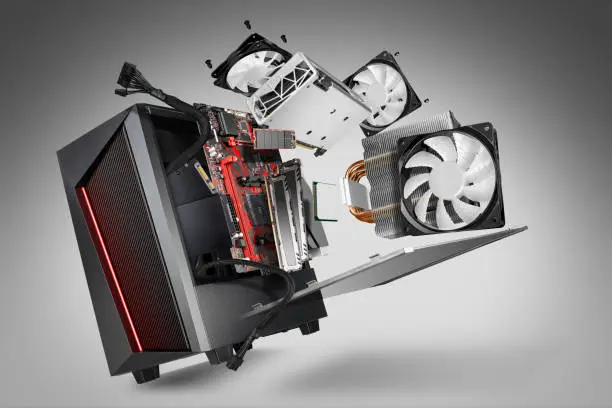
Gaming PC Power Issues: How to Diagnose and Repair
Power issues with gaming PCs are some of the most frustrating and challenging problems for gamers to face. A gaming PC relies heavily on its power supply unit (PSU) to function, and when there are power-related problems, they can disrupt gameplay and even cause long-term damage to the system. Whether your gaming PC won’t turn on, keeps shutting down unexpectedly, or exhibits unstable power, diagnosing and repairing the issue is critical.
In this article, we’ll walk you through the common power issues found in gaming PCs, how to diagnose them, and the steps you can take to repair them. Whether you’re an experienced gamer or just getting started with your custom build, understanding the ins and outs of power-related problems is essential.
1. Common Power Issues in Gaming PCs
Before we dive into diagnosing and repairing power problems, let’s first take a look at some of the most common power issues that gaming PCs face. These problems are not only frustrating but can also lead to permanent damage if not addressed quickly.
No Power at All
One of the most basic and common issues is when your gaming PC fails to power on. You press the power button, and nothing happens. This issue could be caused by a variety of factors, including faulty connections, damaged cables, or a broken power supply unit.
Intermittent Power
Another issue that gamers often encounter is when their system powers on and off intermittently. This could be due to a failing PSU, overheating components, or even a defective motherboard.
Power Supply Overload
When the PSU is working harder than it should—due to high demand or faulty components—it can overload. This leads to power cuts or even a complete shutdown of your gaming PC. An overloaded PSU may also emit burning smells or even start to overheat.
Low or Unstable Voltage
A stable and sufficient voltage is essential for a gaming PC to function properly. Low voltage can cause performance issues, including crashes, slow boot times, and system instability. On the other hand, unstable voltage can damage sensitive components.
Overheating
While not directly related to power, overheating can cause power failures. If your gaming PC’s components are running too hot, it can lead to automatic shutdowns as a protective measure. This could indicate poor airflow, clogged cooling systems, or a failing fan.
Power Supply Fan Problems
A malfunctioning or noisy PSU fan is another symptom of power-related issues. This can cause your PSU to overheat, potentially resulting in a complete failure.
2. Diagnosing Power Issues in Your Gaming PC
The first step in resolving any power problem is diagnosing the issue. Identifying the root cause will help you decide whether you need a simple fix or a more extensive repair. Let’s break down the process of diagnosing power issues step by step.
Check the Power Supply Unit (PSU)
The PSU is the heart of your gaming PC’s power system. If your PC is not turning on, or if it’s shutting down unexpectedly, the PSU is often the culprit. Start by checking whether the power cable is properly connected to both the wall outlet and the PSU. Sometimes, loose cables or connections are the root cause of the problem.
To check the PSU, look for the following:
- No light on the PSU: If your PSU doesn’t show any signs of life, it’s likely broken and will need replacement.
- Flickering or dim lights: A flickering power light could indicate a faulty PSU or an unstable power connection.
- Burn marks or unusual smells: If you notice signs of burning or smell something burning, immediately shut down your system and replace the PSU to avoid further damage.
Test the PSU with a Multimeter
If you have access to a multimeter, you can test the voltage coming from the PSU. A healthy PSU should produce a stable voltage at the +12V, +5V, and +3.3V rails. If the voltage is off or unstable, the PSU is likely failing and needs to be replaced.
Check the Motherboard and Connections
Power issues may also arise from a faulty motherboard or poor connections. Inspect the motherboard for visible damage or signs of electrical shorts. Check the power connector on the motherboard, as loose connections can disrupt the flow of electricity to other components.
Inspect the Cooling System
Overheating is a common cause of power failure in gaming PCs. If your system is overheating, check the CPU and GPU temperatures. Use monitoring software to check the temperature under load. If the components are running too hot, inspect the cooling system, including fans and thermal paste, to ensure proper heat dissipation.
Look for Short Circuits
A short circuit could prevent your gaming PC from receiving power or cause it to shut down unexpectedly. Check the motherboard, PSU, and cables for any signs of short circuits, such as burned areas or damaged wires.
Test with Minimal Components
If you’re still unsure of the cause, try powering on the system with the minimum number of components. Disconnect all non-essential peripherals (such as extra hard drives, optical drives, and unnecessary expansion cards) and leave only the essential components connected (CPU, RAM, motherboard, GPU). This can help isolate the issue.
3. Repairing Power Issues in Your Gaming PC
Once you’ve diagnosed the issue, it’s time to take action. The repair steps will vary depending on the underlying cause of the power problem. Here are the most common repair solutions for power-related issues:
Replace the Power Supply Unit (PSU)
If the PSU is determined to be faulty, it will need to be replaced. Replacing a PSU is relatively simple, but it requires you to ensure compatibility with your system. Be sure to select a PSU with adequate wattage to handle the power demands of your gaming PC.
When replacing the PSU, follow these steps:
- Unplug your PC: Always disconnect your PC from the power source before beginning any repair.
- Remove the old PSU: Unscrew and carefully remove the old PSU from your PC case.
- Install the new PSU: Place the new PSU into the case and secure it with screws. Ensure all cables are connected properly to the motherboard, CPU, and GPU.
- Test the new PSU: Power on the system to ensure the new PSU is functioning correctly.
Reseating or Replacing the Motherboard
If the motherboard is damaged or has loose connections, reseating or replacing it may be necessary. Start by disconnecting all cables and components from the motherboard. Carefully remove the motherboard from the case and inspect it for any damage. If there is visible damage or burnt areas, it’s time to replace the motherboard.
When reseating the motherboard, carefully reconnect all cables and components, making sure each part is secure.
Improve Cooling and Replace Faulty Fans
Overheating can cause gaming PCs to shut down unexpectedly or fail to power on. If cooling is the issue, start by cleaning the fans and checking the thermal paste on the CPU. If any fans are faulty, replace them to improve airflow and cooling efficiency.
Replace Damaged Cables
If damaged cables are causing power issues, replace them with new, high-quality cables. Ensure that all connections are tight and secure, and inspect the cables for any signs of wear or fraying.
Perform a BIOS Reset
Sometimes, power issues can be resolved by resetting the BIOS. If there’s an issue with the BIOS settings, resetting them to default values can solve the problem. To reset the BIOS, remove the CMOS battery for a few minutes, then reinsert it.
4. When to Seek Professional Help
While some power issues can be fixed with DIY methods, others require professional expertise. If you’re unable to identify the cause of the power failure or if you’re uncomfortable performing repairs yourself, it’s best to seek professional assistance.
A Gaming PC repair service in Hialeah, FL can diagnose and repair power issues efficiently, saving you time and ensuring your system is back to optimal performance. Professional repair services are equipped with the necessary tools and expertise to handle even the most complex power-related problems.
Final Thoughts
Power issues can be some of the most frustrating problems for gaming PCs, but with the right knowledge and tools, you can diagnose and repair them effectively. By following the steps outlined in this article, you can ensure your gaming PC remains in top condition for years to come.
At Mobile Xpert – Hialeah, FL, we fix your devices fast and efficiently. Whether it’s a phone, tablet, laptop, or MacBook, our expert technicians are ready to help. We use top-quality parts, offer fair prices, and focus on quick repairs to get your device back in perfect condition.
We understand how important your devices are, and we’re here to keep them working smoothly. Come visit Mobile Xpert in Hialeah, FL, for reliable repairs you can count on!
click here to visit website for more interesting collection of articles